A document theme is one Typst file in your vault that decides how
ntropy render lays out a PDF: the page, the fonts, the title, the
callouts. This guide builds one called handout, starting from a copy of
ntropy's own look and changing one thing you can see per step. The
reference behind it is
Document themes.
You need typst on your PATH, which every PDF
render needs, and a vault.
Before you start
Every command in this guide runs in the root of your vault:
cd "$(ntropy info -p)"
Create the note the guide renders. It holds a little of everything a theme styles: frontmatter, headings, a task list, callouts, a table, code and a footnote.
ntropy write "$(ntropy new --empty -p Release checklist)" <<'EOF'
---
title: Release checklist
tags: [ops, release]
author: Jane Doe
status: draft
---
Every release goes through the same steps.[^1]

## Before the release

- [x] Freeze the main branch
- [ ] Update the changelog

> [!TIP]
> Run the checks locally first.

## Rollout

| Stage | Share of traffic |
| :--- | ---: |
| Canary | 5 % |
| Everyone | 100 % |

> [!WARNING]
> Never roll out on a Friday.

```sh
just release 2.9.0
```

## After the release

Watch the error rate for an hour. If it rises, roll back with
`just rollback` and write down what happened.

[^1]: Patch releases follow the same steps.
EOF
This is the command that renders it, and the one each step below means by "render again":
ntropy render --force -o /tmp/release-checklist.pdf 'title:"Release checklist"' && open /tmp/release-checklist.pdf
On Linux, use xdg-open in place of open. The && opens the PDF only
when the render worked, so a failed render does not leave you looking at
the previous one.
Step 1: Copy the default and switch it on
The whole layout of a PDF is one Typst function, note. Copy ntropy's own
into a theme file:
mkdir -p .ntropy/themes/typst
ntropy render --to typst --theme default --force -o /tmp/default.typ 'title:"Release checklist"'
sed -n '/^#let note(/,/^}/p' /tmp/default.typ > .ntropy/themes/typst/handout.typ
--to typst writes the Typst document ntropy hands to typst, and
--theme default makes it use the built-in look even if your vault has a
theme already. The sed line keeps the note function from it.
Switch the theme on by adding this table at the end of
.ntropy/config.toml:
[render]
theme = "handout"
Note
--theme <name> picks another theme for one render, and
--theme default the built-in look. How a vault selects its themes is
in Themes.
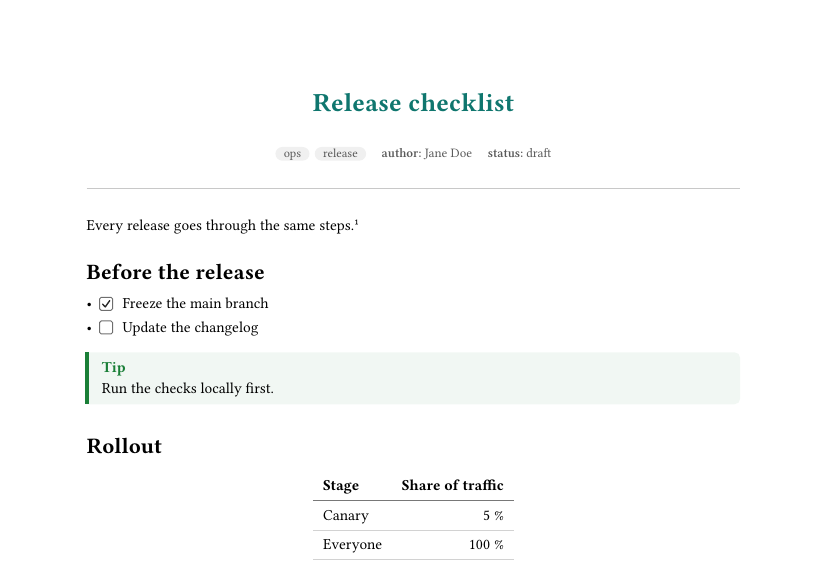
Render again. The PDF looks the same as before, because the theme is still
a copy. Now make it yours: add a colour at the very top of handout.typ,
#let accent = rgb("#0f766e")
and find the line that draws the title further down. Give it that colour:
align(center, text(size: 1.7em, weight: "bold", fill: accent, title))
Render again, and the title is teal.
ntropy places your theme after its own definitions, so your note
replaces the built-in one. Everything the theme does not define keeps the
built-in version; the callouts and checkboxes come from ntropy until
step 6.
Tip
A small change needs no copy. A theme file holding only
#set text(font: "IBM Plex Sans") changes the font and keeps the
built-in layout. The copy is for changing the layout itself.
Step 2: Page and paper
Replace the line that starts with set page( with this block:
  set page(
    paper: paper,
    margin: (x: 2cm, top: 2.5cm, bottom: 2.2cm),
    header: context if here().page() > 1 {
      set text(size: 0.8em, fill: luma(120))
      align(right, title)
    },
    footer: context {
      set text(size: 0.8em, fill: luma(120))
      align(center, counter(page).display("1 / 1", both: true))
    },
  )
Then pick a smaller paper size. Add paper to the table in
.ntropy/config.toml, which now reads:
[render]
theme = "handout"
paper = "a5"
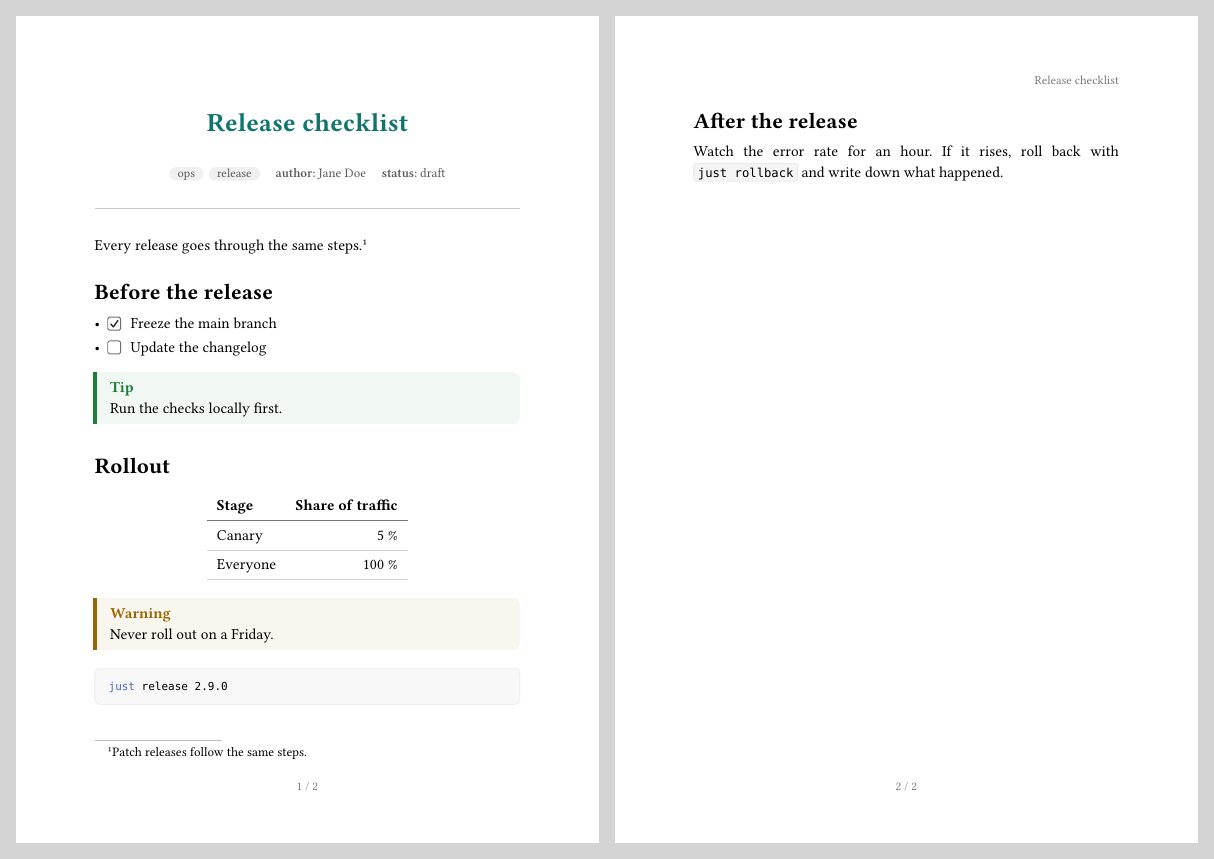
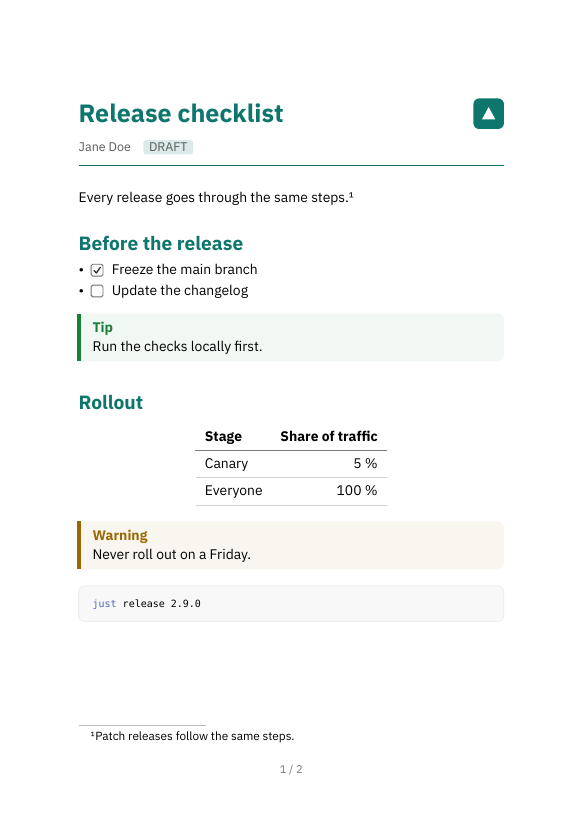
Render again. The note now fills two A5 pages, each with its page number at the bottom, and the second page carries the title in its header.
Note
Keep paper: paper. It is how the paper setting of
.ntropy/config.toml reaches the theme; with a fixed value there, the
setting does nothing. The paper sizes are listed under
Document themes.
Step 3: Fonts
The built-in look uses the fonts that come with typst. A theme can use any
font typst finds: the fonts installed on your system, and the fonts in the
directories TYPST_FONT_PATHS names. A font file in your vault is not
found on its own.
This guide uses IBM Plex Sans, which is free under the SIL Open Font License. Download it and keep its files in the vault:
curl -L -o /tmp/ibm-plex-sans.zip 'https://github.com/IBM/plex/releases/download/%40ibm%2Fplex-sans%401.1.0/ibm-plex-sans.zip'
unzip -q /tmp/ibm-plex-sans.zip -d /tmp/plex
mkdir -p assets/fonts
cp /tmp/plex/ibm-plex-sans/fonts/complete/ttf/IBMPlexSans-{Regular,Italic,Bold,BoldItalic}.ttf assets/fonts/
export TYPST_FONT_PATHS="$(ntropy info -p)/assets/fonts"
The export holds for this terminal only. Run it again in a new one, or
put it in your shell's profile. Installing the font on your system instead
works too, and then nothing needs exporting.
Check that typst knows the font by the name you are about to use:
typst fonts --font-path assets/fonts
The list includes IBM Plex Sans. Now change the line
set text(size: 11pt) to:
set text(font: "IBM Plex Sans", size: 10pt)
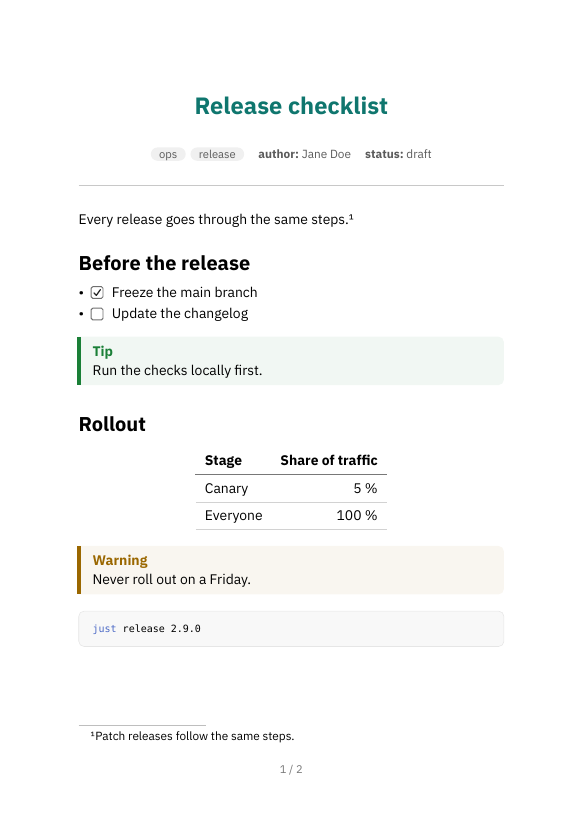
Render again, and the text is set in Plex.
Warning
A font name typst does not find is replaced by the default font. The
render prints typst's warning as one of its own:
warning: unknown font family: ibm plex sans (in ...). It does so for
every typst warning, and --strict fails on it. If the PDF still shows
the old font, the name is misspelt or TYPST_FONT_PATHS is not set in
this terminal. pdffonts /tmp/release-checklist.pdf (from poppler, if you have it)
lists the fonts in the PDF: yours should be there, and Libertinus Serif
in its place means the name was not found. A glyph your font lacks is
taken from another font, which then shows up in that list too.
Step 4: Headings and text
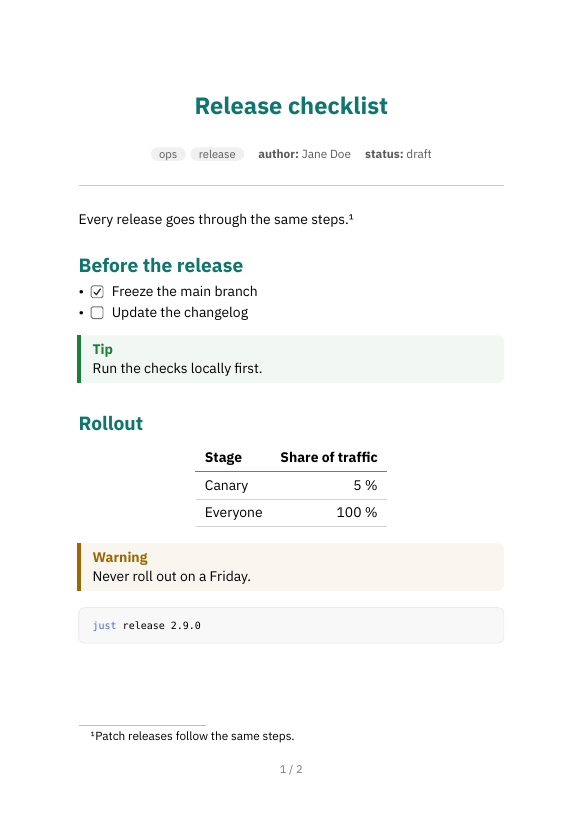
Four edits in the rules near the top of note. Paragraphs stop being
justified and get more space between them:
set par(justify: false, leading: 0.65em, spacing: 1.2em)
Headings get more air above them and the accent colour. Change the first
show heading line and add one below it:
  show heading: set block(above: 1.8em, below: 0.7em)
  show heading: set text(fill: accent)
Make second-level headings a little smaller:
show heading.where(level: 2): set text(size: 1.15em)
And links take the accent colour too:
show link: set text(fill: accent)
Render again.
Tip
set heading(numbering: "1.1") numbers headings by their Markdown
level. Most notes start their sections at ##, and those come out as
0.1, 0.2. A numbering function that skips the first level avoids
that: set heading(numbering: (..n) => numbering("1.1", ..n.pos().slice(1))).
Step 5: Title and frontmatter
The title block is where a theme decides what of the frontmatter reaches
the page. handout shows the author and the status, leaves the tags out,
and puts a logo beside the title. Create the logo first:
mkdir -p assets
cat > assets/logo.svg <<'EOF'
<svg xmlns="http://www.w3.org/2000/svg" width="32" height="32" viewBox="0 0 32 32">
  <rect width="32" height="32" rx="6" fill="#0f766e"/>
  <path d="M9 22 L16 9 L23 22 Z" fill="#ffffff"/>
</svg>
EOF
In handout.typ, delete everything from the line if title != none {
down to the line v(0.9em), both included. The title and the metadata
strip of the built-in look are gone; body and the closing } stay at the
end. Put this in their place:
  grid(
    columns: (1fr, auto),
    align: horizon,
    text(size: 1.8em, weight: "bold", fill: accent, title),
    image("/assets/logo.svg", height: 2.2em),
  )

  let author = frontmatter.at("author", default: none)
  let status = frontmatter.at("status", default: none)
  block(above: 0.8em, below: 0.8em, {
    set text(size: 0.9em, fill: luma(90))
    if author != none { fmt-value(author) }
    if status != none {
      h(1em)
      box(
        fill: accent.lighten(85%),
        radius: 2pt,
        inset: (x: 4pt, y: 2pt),
        upper(fmt-value(status)),
      )
    }
  })
  line(length: 100%, stroke: 0.8pt + accent)
  v(0.8em)
Render again.
note receives four things. title is the note's title. frontmatter
is the note's whole frontmatter as Typst values, title and tags
included, so frontmatter.at("author", default: none) reads a field
without failing on a note that lacks it. fmt-value is a helper of
ntropy's that turns any frontmatter value, a list included, into text.
paper is the paper size from step 2, and body is the note itself.
Document themes
has the details.
Note
A path that starts with / is read from the vault root, so
/assets/logo.svg is the file you just created.
Step 6: Callouts, checkboxes and note links
Three more functions decide how a callout, a task-list checkbox and a link
to another note look. Unlike the rules so far, they are not part of note:
add them at the end of handout.typ, after the } that closes note.
#let callout-colors = (
  note: accent,
  tip: rgb("#15803d"),
  important: rgb("#7c3aed"),
  warning: rgb("#b45309"),
  caution: rgb("#b91c1c"),
)

#let callout(kind: "note", body) = {
  let color = callout-colors.at(kind)
  block(width: 100%, fill: color.lighten(90%), radius: 3pt, inset: 0.8em, {
    text(size: 0.75em, weight: "bold", fill: color, upper(kind))
    linebreak()
    body
  })
}

#let task(done: false) = {
  box(
    width: 0.8em,
    height: 0.8em,
    radius: 1pt,
    baseline: 0.1em,
    stroke: 0.7pt + accent,
    fill: if done { accent } else { none },
  )
  h(0.4em)
}

#let notelink(body) = text(fill: accent)[#body #sym.arrow.r]
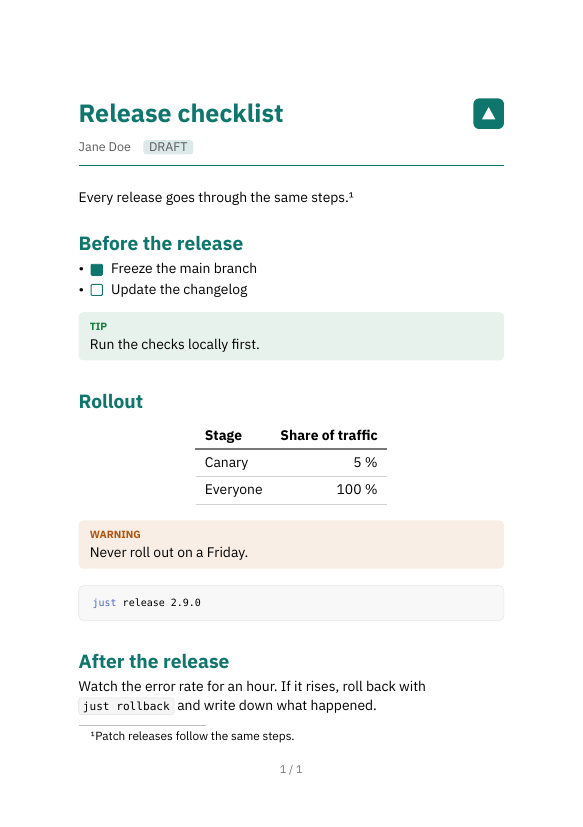
callout receives the kind in lower case, one of note, tip,
important, warning and caution. Render again: the callouts are tinted
boxes with a small label, and a done task has a filled box.
The sample note links to no other note. In one that does, the link now shows the other note's title in the accent colour with an arrow after it, where the built-in look sets it in blue italics.
Step 7: Tables, code and footnotes
Everything else in a note, tables, code, quotes, lists and footnotes
among it, is a plain Typst element in body. set and show rules
inside note style it, the way the copied rules already do. Three edits:
In the show raw.where(block: true) rule, change the fill and stroke
lines, so code blocks get a tint and a bar on the left:
    fill: accent.lighten(95%),
    stroke: (left: 2pt + accent),
Below the line show table.cell.where(y: 0): set text(weight: "bold"),
tint the header row of tables:
set table(fill: (x, y) => if y == 0 { accent.lighten(85%) })
Below the line set line(stroke: 0.6pt + luma(190)), style the footnotes:
  set footnote.entry(separator: line(length: 40%, stroke: 1pt + accent))
  show footnote.entry: set text(size: 0.85em, fill: luma(80))
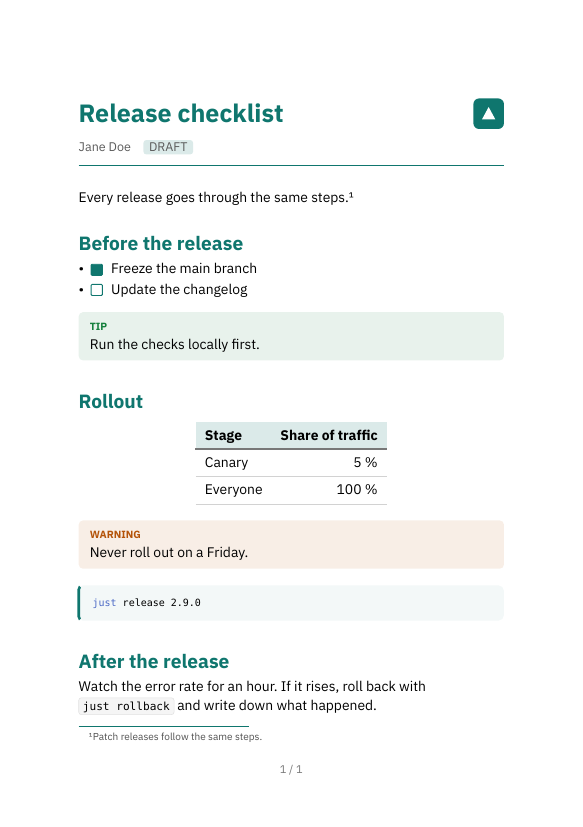
Render again. That is the finished handout.
Document themes lists the element each Markdown construct becomes.
Note
The rules for tables, code, quotes and links you edited here came with
the copy from step 1. A note written from scratch has none of them, and
its tables, code and quotes come out in typst's plain defaults.
Check your theme
Render a few of your real notes with the theme, and one with
--theme default next to it.
Then render the theme test note, which holds a little of every part a theme styles. This puts it into your vault and renders it; Themes describes what it holds and which releases carry it:
curl -fsSL https://ntropy.westhoffswelt.de/downloads/theme-test-note.tar.gz | tar xz -C "$(ntropy info -p)"
ntropy render --force -o /tmp/theme-test-note.pdf 'title:"Theme test note"' && open /tmp/theme-test-note.pdf
Note
In an encrypted vault, run ntropy reconcile after the download. It
encrypts the two notes the archive adds.
Read it section by section:
- the six heading levels, and a heading with code in it;
- Links: the title of a linked note, a link with its own text, a link to a file;
- Lists: nesting three levels deep, the task boxes, and a code block and a quote inside list items;
- Quotes and callouts: the five kinds, a quote inside a quote, and a table and a callout inside a quote;
- Tables: the columns without an alignment row, and whether the ten columns of the wide table fit the page;
- Code: the block without a language and the long line;
- Images: the wide image scaled to the column, and the small one at its own size;
- Footnotes and Wrapping: the footnote text, and the long word, URL and line of code.
A theme that does not compile fails the render with typst's error. The
line it names after <stdin> is a line of the Typst document ntropy
hands to typst, not of your theme file. To see which of your lines it
is, write that document and compile it yourself, then open
/tmp/check.typ at that line:
ntropy render --to typst --force -o /tmp/check.typ 'title:"Release checklist"'
typst compile --root "$(ntropy info -p)" - /tmp/check.pdf < /tmp/check.typ
An error in a file your theme imports names that file instead.
When you are done with the test note, remove it again:
ntropy delete -n -f 01M6CCEVBP701HH0VPBT6ZNAYZ
ntropy delete -n -f 01M6CCEVCDRQ5504MDH503KQT2
rm -r assets/theme-test